 Vintro Pro
NL · FR · EN
Vintro Pro
NL · FR · EN
Vintro Pro
NL · FR · EN
Vintro Pro
NL · FR · EN
When you buy a piece from a private seller, you make out the proof of purchase yourself. The app fills it in with what it already knows: the piece, the price, the date and the seller. You print it, and you both sign.
The country of your business decides which document the app makes. In Belgium it is a Purchase slip (aankoopborderel). In the Netherlands a Purchase declaration (inkoopverklaring): it carries the seller’s declaration, and the seller signs. In the UK a Purchase invoice. In France a Purchase record; also enter the purchase in your register (livre de police).
Go to 🏢 Company settings → 🏢 Your business and pick your Country. You do this once.
When is it required? In Belgium, for every purchase from a private person, however small. In the Netherlands the purchase declaration is required from €500 per supplier. The rules per country are in the knowledge base: Can a private seller sell to a dealer?

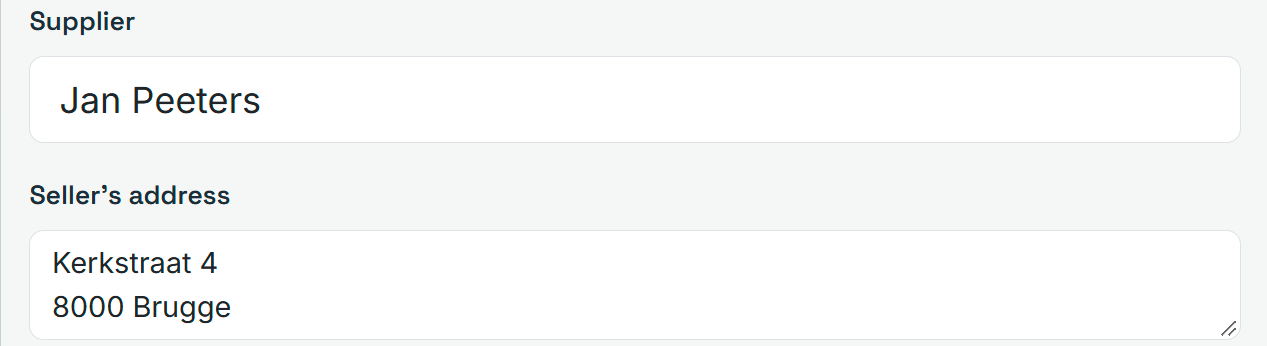
The slip shows the seller’s name and address. You already fill in the name under Supplier. The address has its own box.
In Quick entry and in All details, the box Seller's address sits under Supplier. Pick a supplier that already has an address, and the app fills it in for you. What you type yourself stays.
The seller’s address never appears in your public catalogue.
At a market you do not want to look things up afterwards. Tick the box once, and you get the pdf with every piece.
In Quick entry, tick 📄 Make a purchase slip straight away when saving. Click 💾 Save: the pdf goes to your downloads. The box stays ticked for the next piece. Forgot? The green bar after saving also has the button 📄 Purchase slip.

For a piece that is already in your stock, you can still make the slip.
Open the piece and click 📄 at the top, next to 🖨️ by 📝 Basic details (at purchase). The app uses what is in the form right now, even if you have not saved yet. In your stock, every card also has a 📄 button.

Buy ten pieces from the same person, and you want one sheet, not ten.
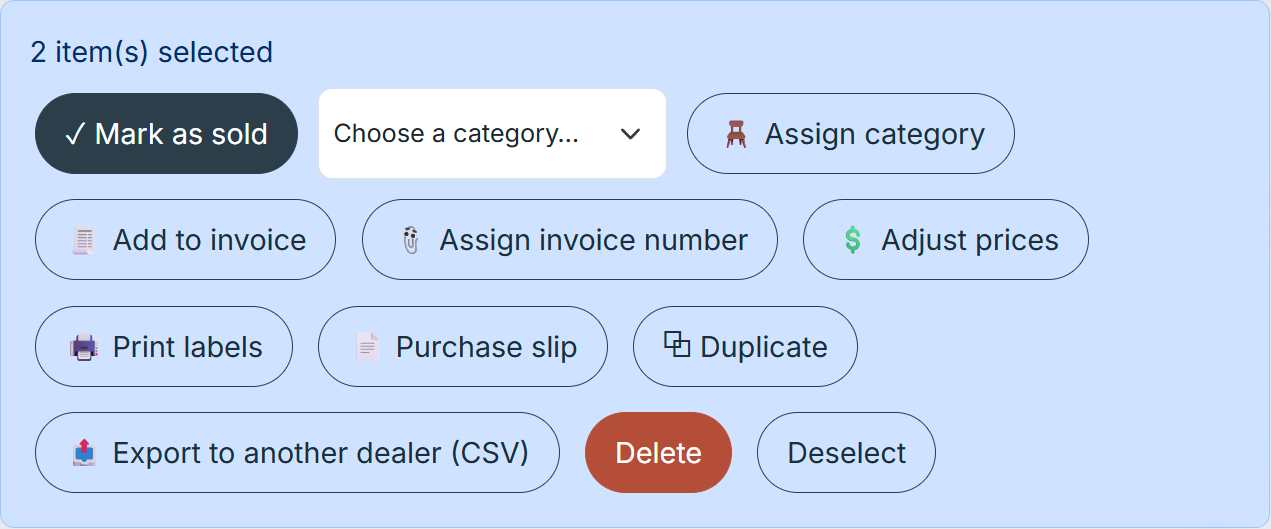
Tick the pieces in your stock. In the bar at the top, click 📄 Purchase slip. All pieces must come from the same supplier. If your selection has two sellers, the app makes nothing and tells you why.
The slip is only done with the signatures. At the bottom it says: made out in two copies, one for the seller and one for the buyer.
Print the pdf twice. If something is missing, like the address or the date, there is an empty line. Fill it in by hand. The seller signs at Seller's signature, you at Buyer's signature.
These pages are free and will stay that way. If you would rather have someone look at your own stock with you, that is available as paid guidance.
In Belgium, for every purchase from a private person, with no threshold. In the Netherlands a purchase declaration is required from €500 per supplier. The rules per country are in the knowledge base.
Then there is an empty line on the sheet. Fill it in by hand before you both sign.
No. One slip is one seller. Select only the pieces from the same supplier.
No. The address is only in your own stock and on the slip, never in your public catalogue.
The document follows the country of your business. Check in 🏢 Company settings → 🏢 Your business which country is set.