 Vintro Pro
NL · FR · EN
Vintro Pro
NL · FR · EN
Vintro Pro
NL · FR · EN
Vintro Pro
NL · FR · EN
Your public catalogue is your shop window on the internet: an address of your own to put in your Instagram bio or email signature. Your pieces also appear on the shared Vintro Pro marketplace.
This is by far the most asked question: why is my piece not showing? A piece only appears when it meets all four — not sold, not deleted, the box ticked, and at least one photo. Miss one and it stays silently invisible.
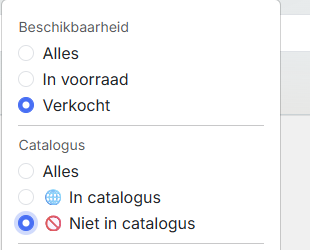
Do not hunt for them one by one. Open the filter menu above your stock and pick 🚫 Not in catalog under Catalogue: that gives you the whole list of what is missing at once. Then run through the four conditions piece by piece, starting with the photo — that is the one most often absent. Want to check? Set the filter to In stock + 🚫 Not in catalog + With photo. That list should be empty: a piece that is in stock and has a photo is always there. What is left under Without photo is exactly your to-do list.
You do not want to show everything in stock publicly. So it is a choice per piece. It is ticked by default.
Open the item and check Show in my public catalog. If you cannot see that checkbox, add the public catalogue section first: the globe button 🌐 at the very bottom of the form, in the row of sections you can add. On an item where that section is not there yet, the checkbox only appears afterwards.

Without a photo a piece does not appear, however good the description. That is deliberate: a shop window with empty slots sells nothing.
Add at least one image under Photo.

The short description is for you, to find the piece again. The detailed one is for the buyer. Let the AI write a first version — it does not touch what you typed yourself, and does not fill in your price.
Fill in Detailed description (for the public catalogue). Do the previous step first: the AI writes down what it sees in the photo, so without one it has nothing to work from. Everything hangs on the same image — no photo means no text and no place in the catalogue.

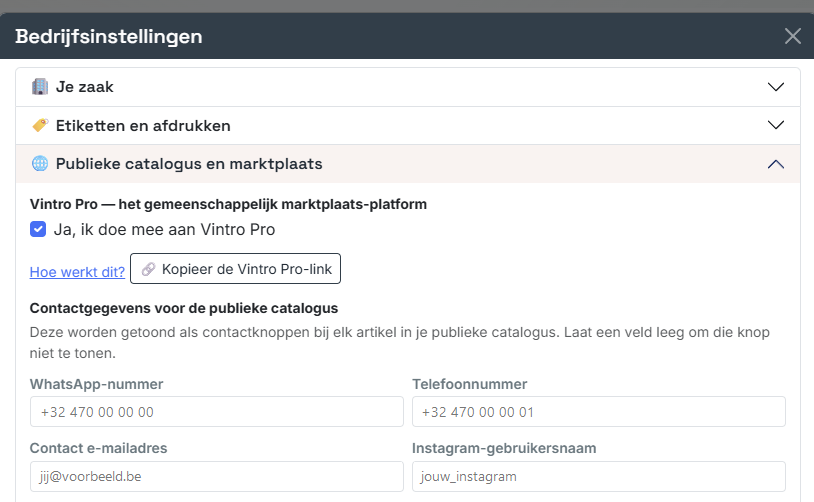
An interested buyer has to be able to reach you. With nothing filled in they see your piece but have no way to respond — and then the whole shop window is for nothing.
Under Contact details for the public catalog, fill in your WhatsApp number, Instagram username, Contact email and Phone number.
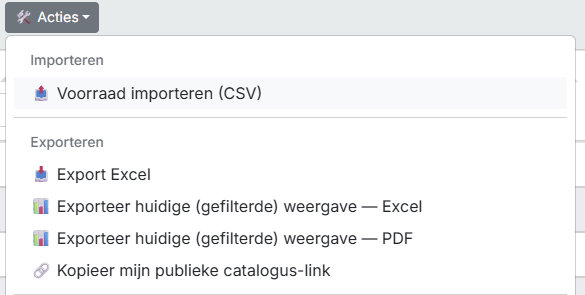
This is one fixed address that always shows your current stock. So you only have to place it once.
Go to 🛠️ Actions → under Export → 🔗 Copy my public catalogue link. Paste it into your Instagram bio, your email signature or onto your business card.
Up to here you have filled everything in without seeing the result. So open your own link once as an outsider: you will spot a missing photo or an empty description before your customer does.
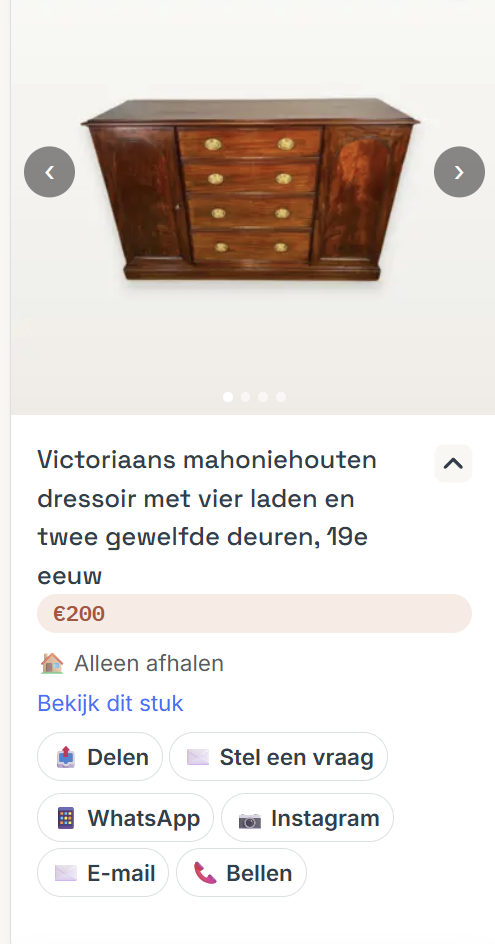
Paste your link into the browser and expand the card. You will see the photos, the title, the price, whether the piece is delivered or collected, and at the bottom the buttons a buyer reaches you with — exactly the details you filled in at the previous step.
These pages are free and will stay that way. If you would rather have someone look at your own stock with you, that is available as paid guidance.
A piece only appears when it meets all four conditions: not sold, not deleted, the box ticked, and at least one photo. Miss one and it stays silently invisible.
Open the filter menu above your stock and pick 🚫 Not in catalog under Catalogue. Add In stock and With photo: that list should be empty, and what is left under Without photo is exactly your worklist.
No. That is a choice per piece, with the Show in my public catalog box, and it is ticked by default.
No. Without a photo a piece does not appear, however good the description is — a shop window with empty spaces sells nothing.
No. It is one fixed address that always shows your current stock. You copy it through 🛠️ Actions → under Export → 🔗 Copy my public catalogue link.
Otherwise an interested buyer sees your piece but has no way to get in touch. Under Contact details for the public catalog, fill in your WhatsApp number, Instagram username, Contact email and phone number.
Yes, if they ask for them. By default your catalogue shows only what is for sale. As soon as it holds at least one sold piece, the button Show sold pieces appears next to the two filters at the top. One click adds them, with a SOLD ribbon across the photo; click again and they are gone. If you have not sold anything yet there is no button — it appears only when there is something to show.